Captures & Comparisons
A Capture is one screenshot, taken for one combination of environment, language, viewport, page, and (if configured) variable and interaction state. A Comparison is a diff between two captures — usually a "before" and "after" of the same page.
Taking a manual capture
Use the Captures tab's capture builder to run captures on demand (as opposed to Monitors, which run automatically on a schedule).
| Field | What it means |
|---|---|
| Environments | Which environment(s) to capture from. |
| Languages | Which language(s) to capture. |
| Viewports | Which viewport(s) to capture. |
| Pages | Pick from your saved pages, or capture an ad-hoc URL you haven't saved as a page yet. |
| Variables | Optional — apply your configured Variables. |
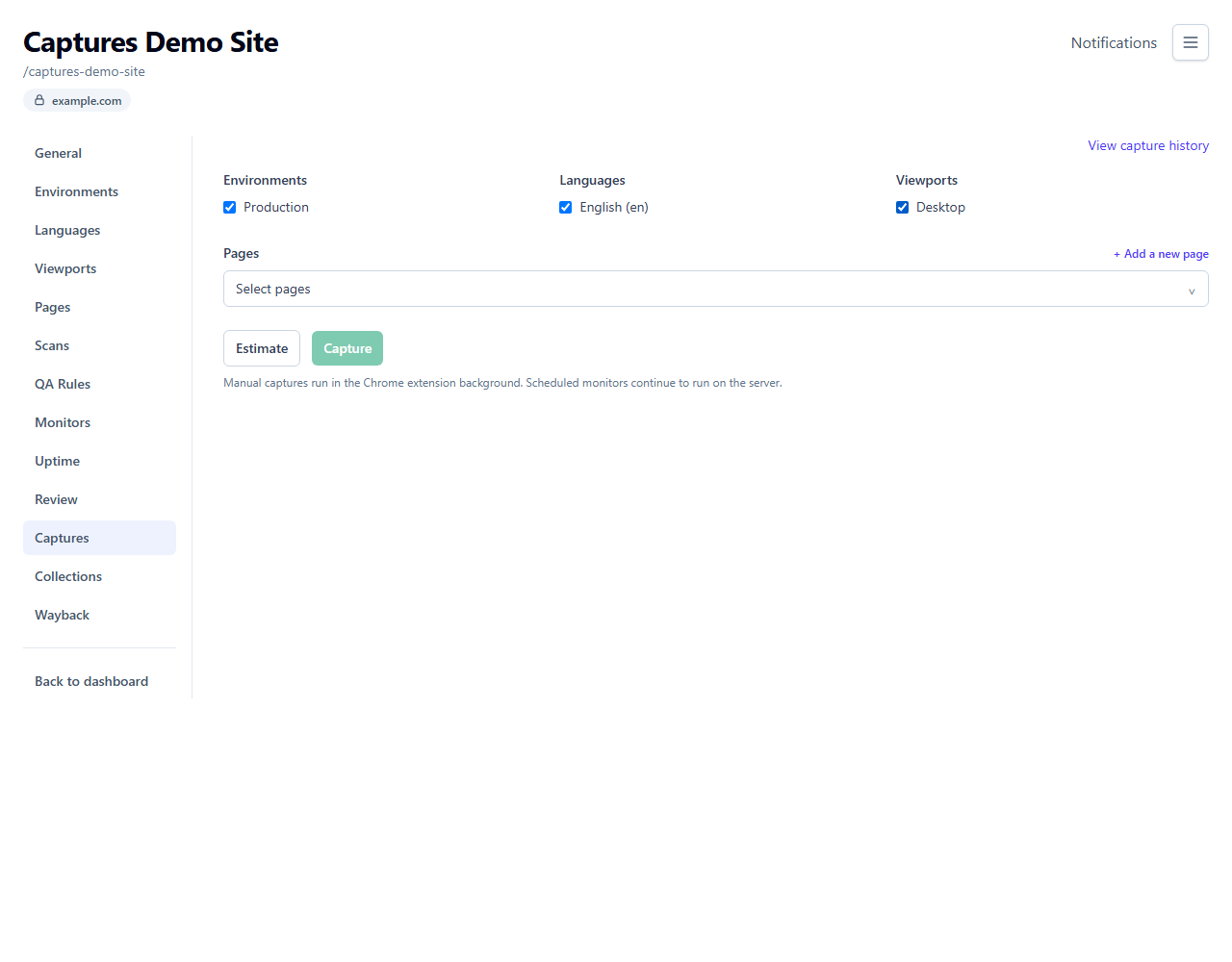
Every combination you select multiplies together — 2 environments × 3 languages × 2 viewports produces 12 captures in one job, up to a limit of 500 per job (lower still if your plan caps languages/viewports/variables per run). The builder shows a live count as you select, so you'll see the total before you submit.
If a page has interaction rules configured (see Projects), they're applied automatically — you don't choose them here.
The Chrome extension is required
Manual capture currently runs through the Chrome extension, not the server. When you click Start, the dashboard hands off to your installed extension, which does the actual screenshotting in your browser and uploads the results. If the extension isn't installed, or you're not using a Chromium-based browser (Chrome, Edge, Brave, etc.), you'll see a "Chrome extension not detected" or unsupported-browser message instead of captures running.
Because manual captures run in your own browser, only environments with No auth are available here — an environment that requires cookies, headers, or basic auth (see Environments) can't be captured this way. For those, and for anything you want to run automatically, use a Monitor instead — monitors always run on the server.
Reading a capture job
Each job shows a status: how many of its captures completed, failed, or are still running.
| Status | Meaning |
|---|---|
| Queued / Running | In progress. |
| Completed | Every capture succeeded. |
| Partially completed | Some captures succeeded, some failed. |
| Failed | None succeeded. |
| Cancelled | You stopped it before it finished. |
Stopping a job in progress cancels every capture that hasn't finished yet. Note that a cancelled capture still counts toward your usage for that period — it already occupied a capture slot even though it didn't complete.
From a finished job you can download every screenshot as a zip (all viewports, or one at a time), save the job's captures into a Collection, and mark individual captures to Keep permanently so they're exempt from your plan's normal retention cleanup (up to a quota).
Comparing two captures
From Capture history, choose Compare against... on any completed capture. VisualRunner lists only older captures that are genuinely compatible: the same page (or the same ad-hoc URL), environment, language, viewport, cookie profile, and interaction state. Permanent and archived captures are listed first, followed by the newest compatible captures. Choose one as the baseline; the capture you started from is the candidate. You can also select two completed captures within a single capture job and compare them directly.
Open any completed job and select two captures to compare directly — useful for a quick "did this change?" check outside of a monitor. (Monitors also produce comparisons automatically every run — see Monitors.)
The comparison viewer shows:
| View | What it shows |
|---|---|
| Side by side | Both screenshots, with the changed regions outlined. |
| Overlay | A draggable slider to reveal one image over the other. |
| Diff | Just the newer screenshot, with changed regions outlined. |
Alongside the images, a Change signals panel breaks down what actually changed:
| Signal | What it means |
|---|---|
| Visual mismatch | The percentage of the page that changed pixel-for-pixel. |
| Text | How much of the visible text changed, and roughly how many lines were added/removed. |
| Metadata | Whether the page title, description, canonical URL, or similar tags changed. |
| Status / Redirect / Availability | Whether the page's HTTP status, redirect target, or basic reachability changed — these count as a change even if the screenshot looks pixel-identical. |
Change score
If screenshots differ only because they were rasterized at different device-pixel densities, or because of font smoothing, gradients, or image interpolation, the report labels the result Rendering variance. The raw pixel percentage remains available in the signal explanation, but VisualRunner does not present that technical noise as a meaningful page change.
A single 0–100 number summarizing how much changed overall, combining all the signals above — a few extra points for a metadata change, more for a status or redirect change, and a fixed 100 whenever the page's availability changed (going down, or coming back up, is always treated as maximally significant regardless of what else changed).
Reviewing a comparison
Every comparison can be marked:
| Status | Meaning |
|---|---|
| Unreviewed | Not looked at yet. |
| Approved | Looked at, no action needed. |
| Dismissed | Looked at, not relevant. |
| Ignored | Looked at, and you don't want to see this specific region change again. |
Choosing Ignored offers to create an ignore rule for the changed region so future runs stop flagging it — this always targets whichever region is currently highlighted first, scoped to the monitor you're reviewing. If you need a differently-scoped ignore rule, or want to review the whole queue at once instead of one comparison at a time, use the Review screen.
Manual and monitor-produced comparisons both appear in the Review queue. Use its Source filter to show only Monitor or Manual comparisons. Manual comparisons have no monitor baseline to update.
Creating a Jira issue
If Jira is connected and this project has an enabled Jira mapping, the comparison review panel has a Create Jira issue action. Choose the destination, edit the suggested summary and optional description, and submit it. VisualRunner creates one issue for that comparison and includes the change score, visual and text percentages, changed status/redirect/availability signals, a link back to the report, and the baseline, candidate, and annotated-difference screenshots when they are available.
The report then shows the Jira issue key and current Jira status, with a link to open it. Jira status is refreshed when you revisit the report. If screenshot attachment upload fails after the issue itself was created, the report keeps the issue and shows an attachment warning instead of creating a duplicate. Jira issues are deliberately created by a reviewer; monitor notifications and Automation Rules do not create Jira work automatically.