Projects
A Project is one domain or subdomain you're tracking — for example, your marketing site or your app's checkout flow. Everything else (Environments, Languages, Viewports, Variables, Pages, Monitors, Scans, Captures) belongs to a Project.
Creating a project
From your workspace dashboard, use the Add project form:
| Field | What it means |
|---|---|
| Workspace | Which workspace owns this project (only shown if you belong to more than one). |
| Domain | The site's domain, e.g. example.com. This cannot be changed later — a project is permanently based on its domain. |
| Project name | A display name, e.g. "Marketing site." |
| Slug | A short identifier used in URLs, lowercase letters/numbers/hyphens only. |
| Description | Optional, up to 2000 characters. |
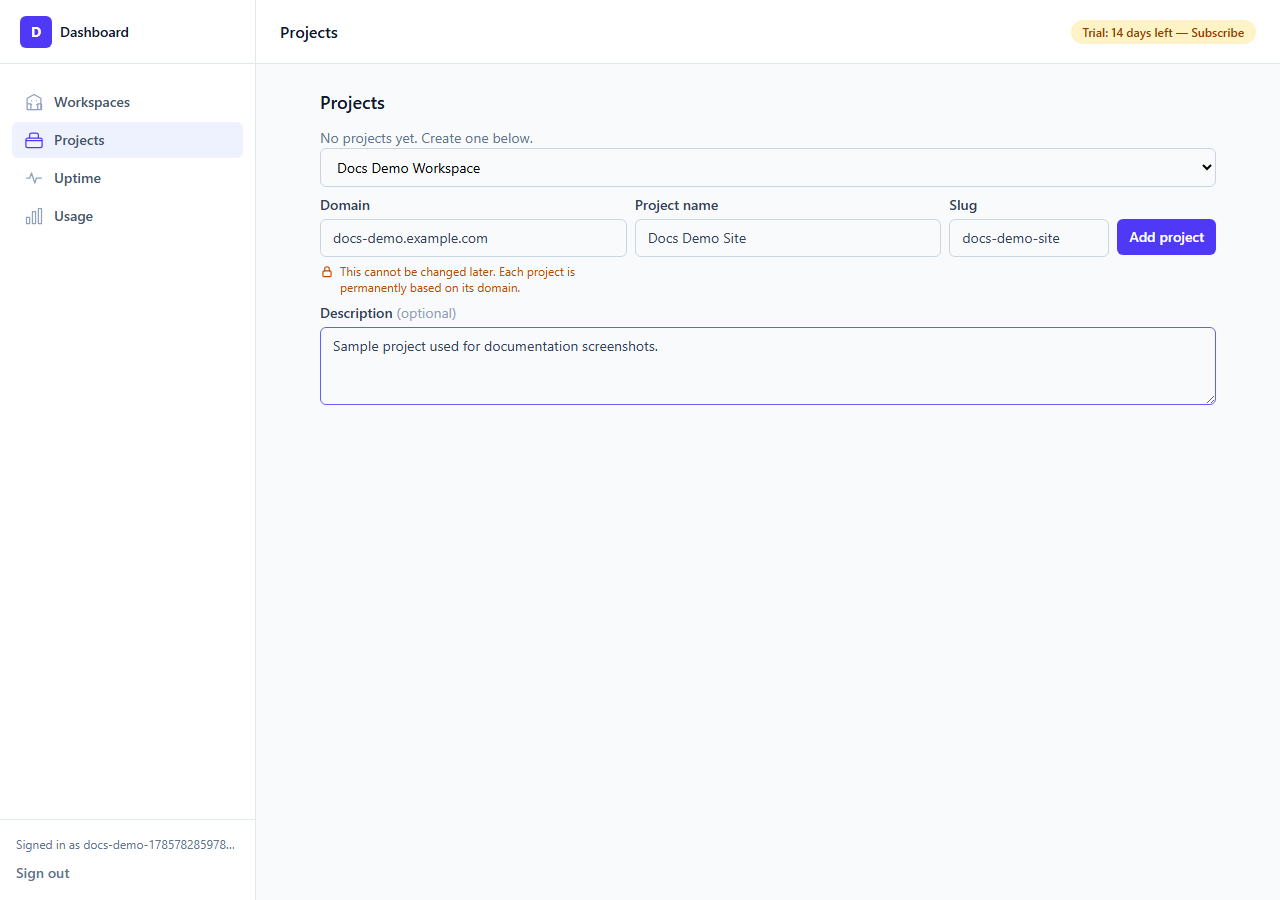
Your plan limits how many active projects and how many distinct domains a workspace can have — if you're at the limit, creating a project (or reactivating an archived one) will fail until you upgrade or free up a slot. Project name and description can be edited later from the same dashboard list; the domain cannot.
Once created, a project opens into its own settings area: General, Environments, Languages, Viewports, Variables, and Pages.
- General is a read-only summary of the project's name, slug, domain, and description. It also shows the Website Coverage widget (see below).
Website Coverage
At the top of a project's General page, the Website Coverage widget gives you an at-a-glance health check: how much of your site is actually being verified.
| Tile | What it means |
|---|---|
| Discovered | Total pages tracked in this project. |
| Protected | Pages with at least one permanently protected capture. |
| Never Captured | Pages that have never had a completed capture. |
| Not Monitored | Pages with no active Monitor watching them. |
The overall percentage covers a page if it's protected, was captured in the last 30 days, or has an active Monitor — any one of the three counts.
Below the tiles: a Language coverage bar per language (share of that language's pages with a completed capture) and a Country coverage checklist (which Variables have been verified in the last 30 days). A footer shows how much of the site was verified within the last 7 days, the oldest verification age, and when the project was last scanned for new pages.
Every tile, language bar, and country badge is clickable — it takes you to the Pages or Capture History screen with the matching filter already applied (e.g. clicking "Never Captured" opens Pages pre-filtered to exactly those pages).
Environments
An Environment is a named target for this project — where should VisualRunner actually go to take a screenshot? Typical examples: Production, Staging, Test.
A Production environment is created for you automatically when you create the project, using the domain you entered — you don't have to add one yourself before you can start capturing. Edit it any time from the Environments page; add more (Staging, Test, etc.) the same way.
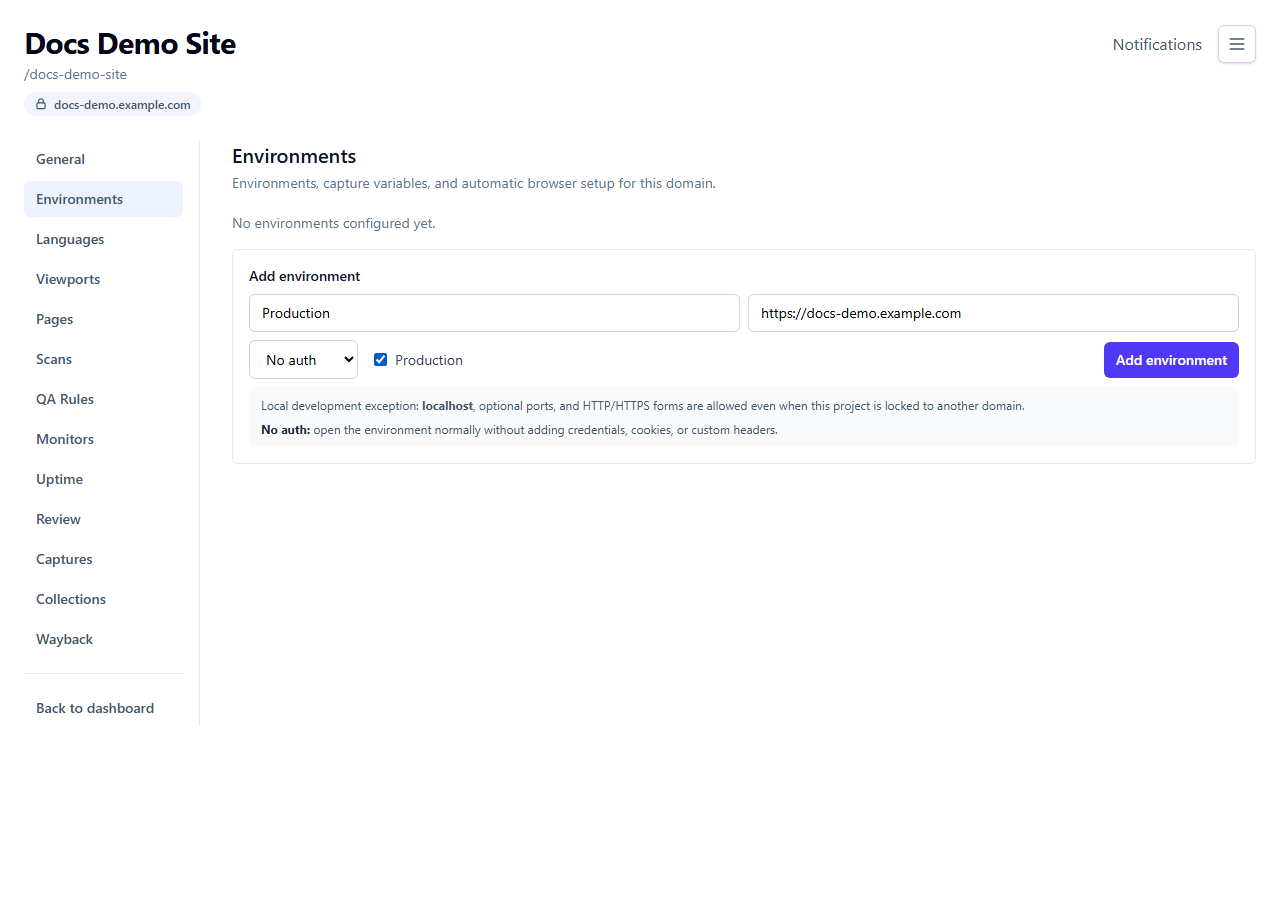
Add one from the project's Environments page:
| Field | What it means |
|---|---|
| Name | e.g. "Staging." |
| Base URL | e.g. https://staging.example.com, or localhost:4200 for local development. |
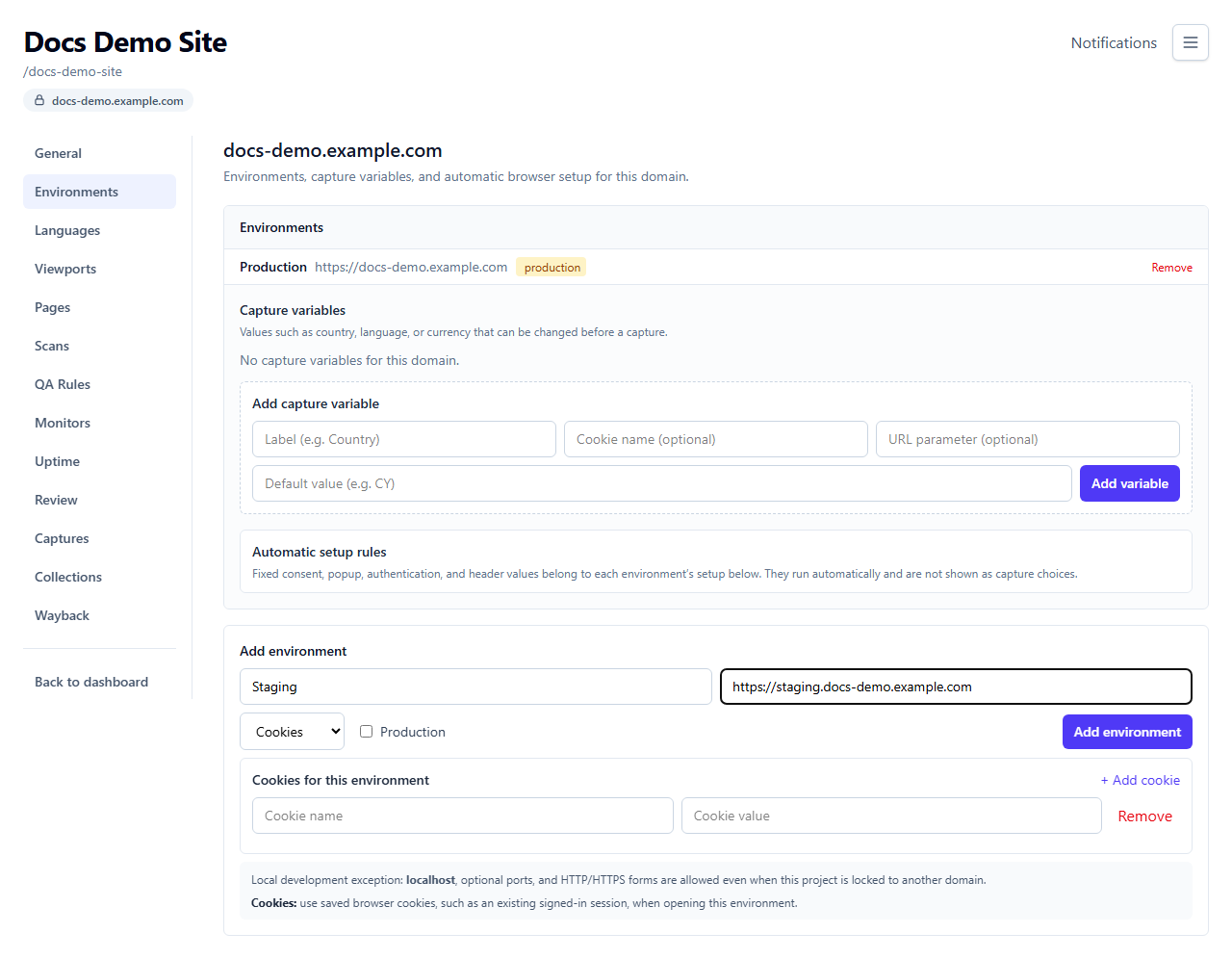
| Auth mode | No auth (open normally), Cookies (use saved cookies, e.g. an existing signed-in session), Headers (send a custom HTTP header, e.g. an API token or preview-access header), or Basic auth (the browser's built-in username/password prompt). |
| Production | Check this if it's the live, public site. |
Choosing Cookies, Headers, or Basic auth reveals the matching fields to fill in:
A few things worth knowing:
- You can only have one Production environment per domain. Marking a new environment as Production automatically un-marks whichever one held that title before.
- The domain is locked once you have an environment. Every later environment you add for this
project must be on the same domain (an exception is made for
localhost, for local development). - Credentials are encrypted — cookies, headers, and basic-auth passwords you enter are never shown back to you or anyone else after saving.
- Environment URLs are checked and blocked if they point at localhost, a private/internal IP range,
or an unsupported protocol — this prevents a Monitor or Scan from being pointed at internal
infrastructure by mistake. (Local development is still allowed via the
localhost/127.0.0.1exception above.) - Use Test connection to verify an environment actually works — VisualRunner will try to open a real page through it (using your saved auth) and report success/failure without exposing internal network details.
- Adding your first Page (see below) with a URL VisualRunner doesn't recognize will automatically create an Environment for you, guessing Production/Staging/Test from the URL's hostname — so don't be surprised if an Environment appears that you didn't explicitly add.
Variables
Manage from the project's own Variables tab: reusable named presets of URL parameters and/or
cookies applied right before a screenshot is taken, grouped under each domain you've added an
environment for. Use these for things like country, currency, or an A/B test variant — e.g. one
variable setting country=DE, another country=FR.
| Field | What it means |
|---|---|
| Label | A name for this variable, e.g. "Country: Germany." |
| Write value to URL parameters | A query parameter set on the page URL, e.g. country=DE. |
| Write value to cookies | A cookie set before navigation, e.g. region=DE. |
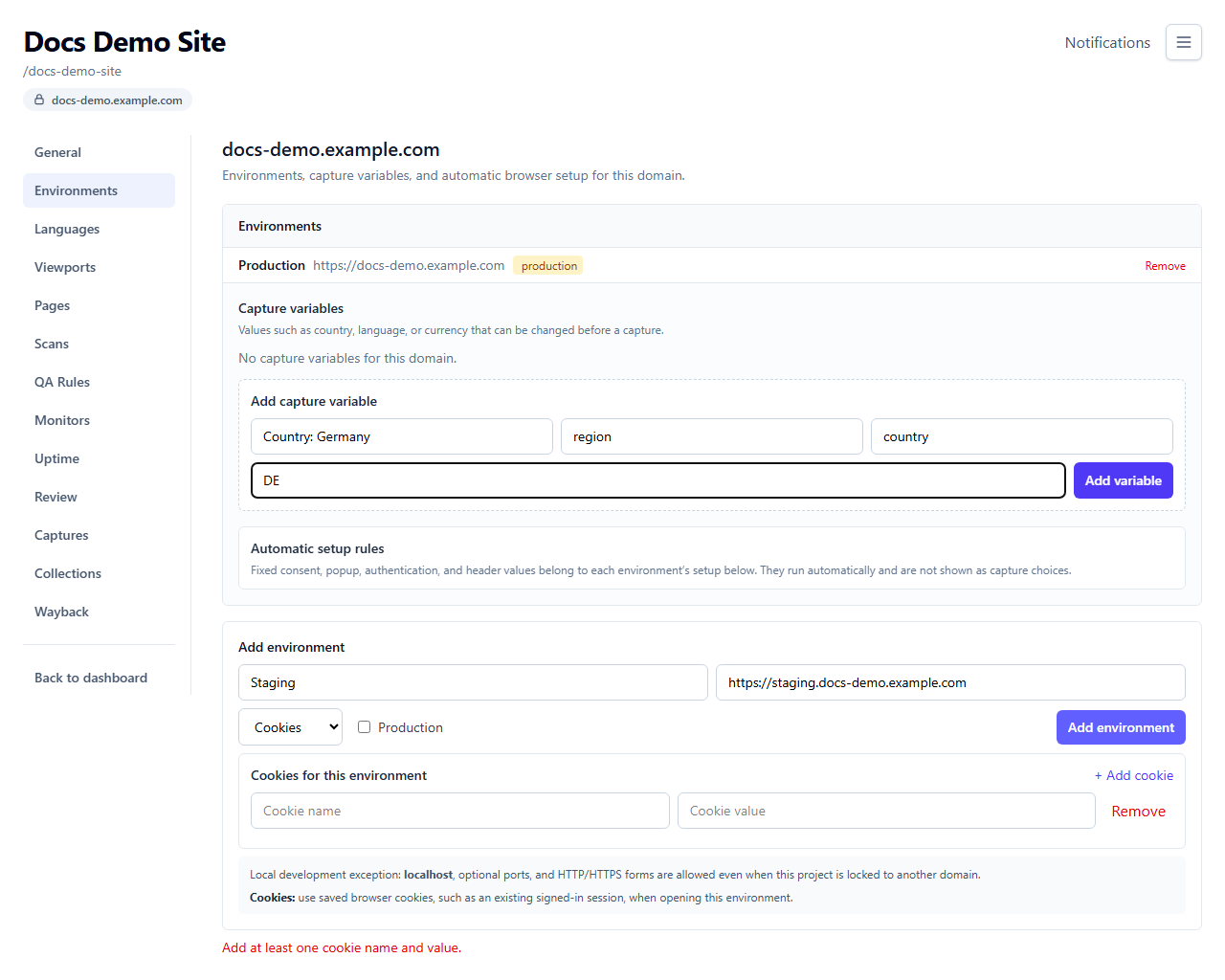
You can set both a URL parameter and a cookie for the same variable if the site needs both. Each variable becomes an additional option when running a capture, scan, or monitor — e.g. "capture this page for Germany and for France." Your plan limits how many Variables a workspace can save at once, separately from how many you can select in a single capture/monitor run — once you hit the saved-Variables limit, the "Add variable" form is replaced with an upgrade prompt.
Languages
If your site is translated, add each language your project should track from the Languages page.
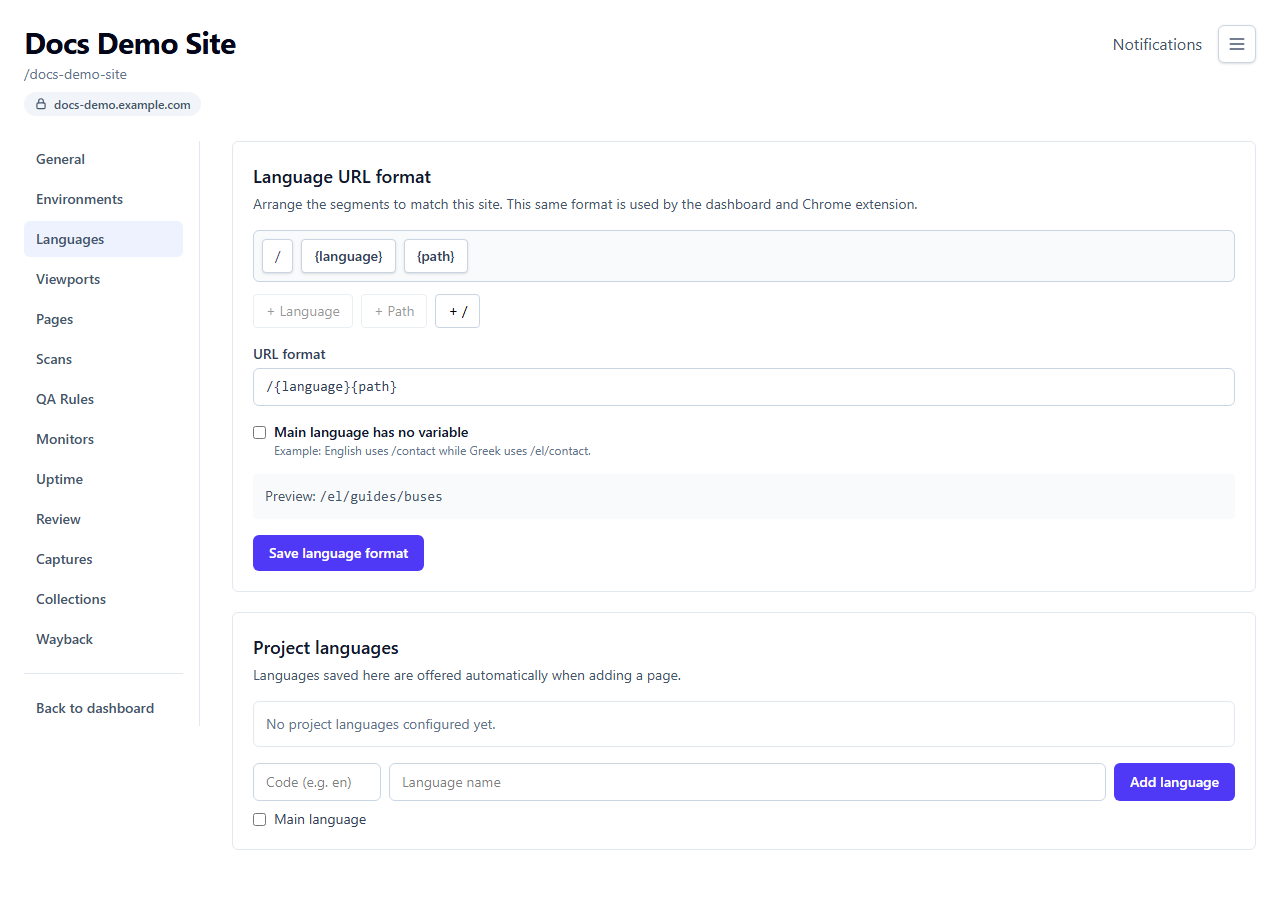
Language URL format
First, tell VisualRunner how your site's URLs indicate language, using the segment builder:
- Drag in
{language}(where the language code goes),{path}(the rest of the page's URL), and/to match your site's pattern. - Common patterns:
/{language}/{path}(path-prefixed, e.g./el/contact), or{path}?lang={language}(query-string, e.g./contact?lang=el), orhttps://{language}.example.com{path}(subdomain — requireshttps://orhttp://at the start). - If your default language has no marker in the URL (e.g. English at
/contact, but Greek at/el/contact), check Main language has no variable and mark that language as Main below — its URL is built from the same format with the language marker removed. - A live preview shows exactly what URL this format produces before you save.
Adding languages
| Field | What it means |
|---|---|
| Code | A short language code, 2–10 characters, e.g. el, en, pt-br. |
| Name | Display name, e.g. "Greek." |
| Main language | Check this for your site's default language (only one language can be Main). |
Languages can be reordered by drag-and-drop — this controls display order elsewhere in the app, not which one is "first."
Viewports
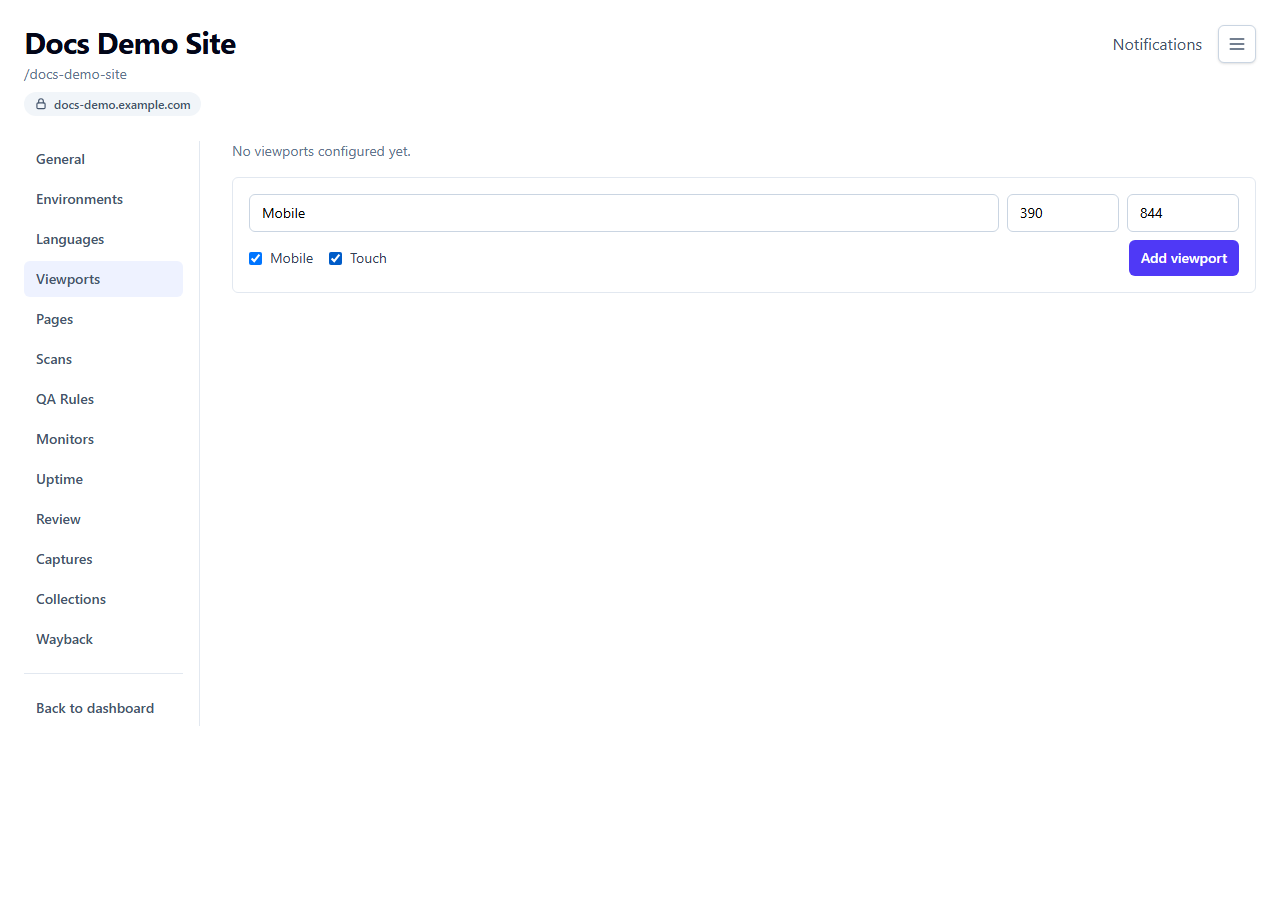
A Viewport is a screen size to capture a page at — desktop, tablet, mobile, etc.
A "Desktop" 1440×1080 viewport is created for you automatically when you create the project. New projects' guided setup announces this and offers to add more screen sizes right away, or later — either way, the default is ready to use immediately.
| Field | What it means |
|---|---|
| Name | e.g. "Desktop," "iPhone 14." |
| Width / Height | In pixels, 240–7680. |
| Mobile | Emulates a mobile browser (affects how the site renders, e.g. responsive layouts). |
| Touch | Emulates a touch-capable device. |
Pages
A Page is one URL within your project, tracked across every language it's available in. Manage pages from the Pages tab.
Adding a page
| Field | What it means |
|---|---|
| Page name | A display name, e.g. "Homepage." |
| Page URL | The full URL, e.g. https://example.com/tickets. |
| Languages | Which of your project's languages this page exists in — pick from the ones you've already added, or type in a brand-new language inline. |
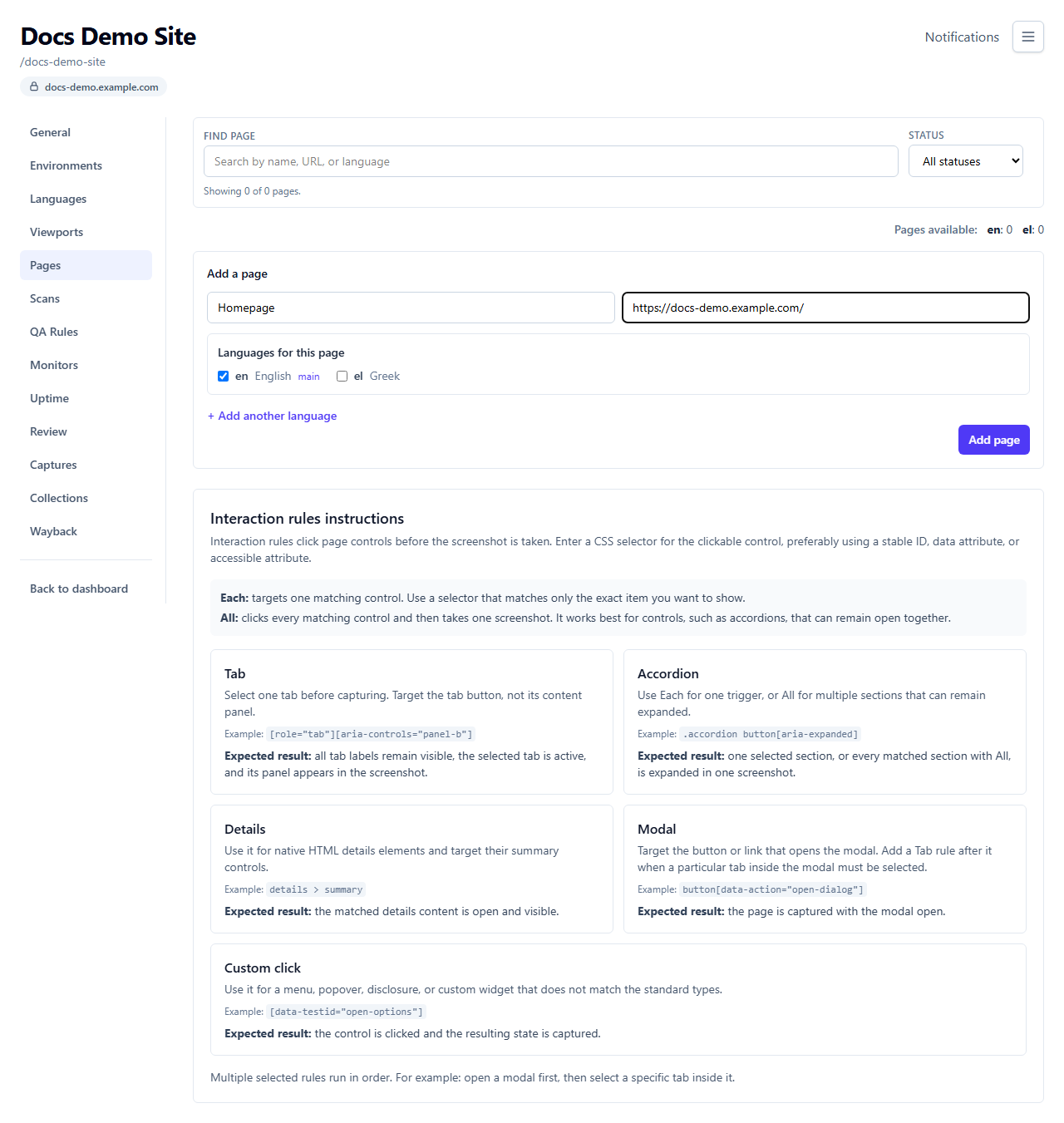
If the page's URL doesn't match an Environment you already have, VisualRunner creates one for you automatically (see Environments above).
Managing pages
Each page shows its status:
| Status | Meaning |
|---|---|
| New | Just discovered by a Scan, not yet reviewed. |
| Existing | Confirmed, in normal rotation. Pages you add manually start here. |
| Missing | Marked as no longer found (you can restore it). |
| Redirected | Set to redirect to another page. |
| Non-indexable | Excluded from search engines (noindex), tracked but flagged. |
| Failed | The last attempt to reach this page's URL failed. |
From a page's row you can: search/filter by status, add or remove a language, set a redirect
target (pick another page it now redirects to), mark it missing or restore it, and move it to
trash. Trashing a page never deletes its existing screenshots — only permanent delete does that,
and it's a separate, explicitly confirmed action (typing DELETE for bulk operations).
Interaction rules
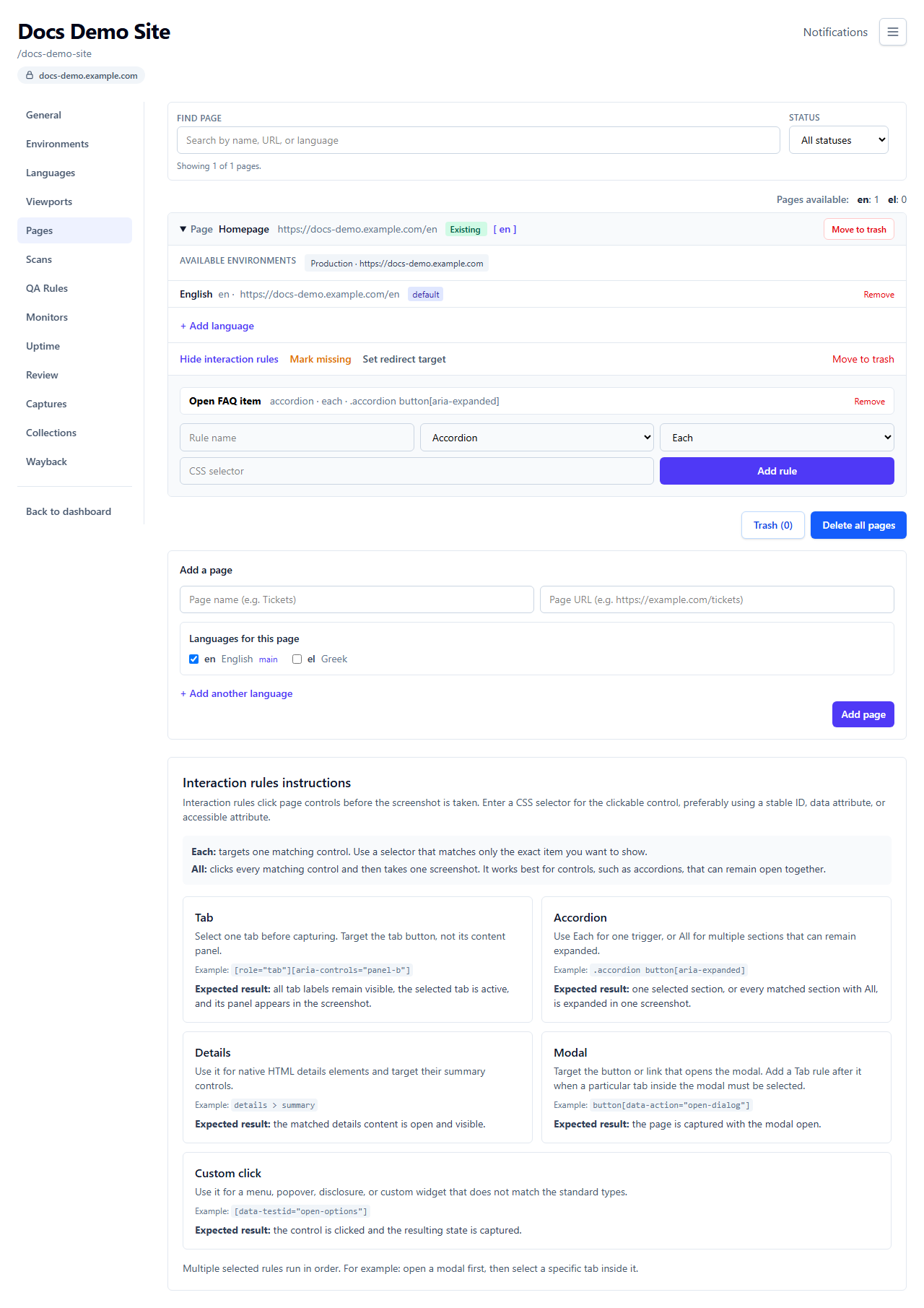
Some pages need a click before the "real" content is visible — a tab, an accordion, a modal. Interaction Rules handle this, and live inside each page's Manage interaction rules panel on the Pages tab.
| Field | What it means |
|---|---|
| Rule name | A label for this rule. |
| Type | Tab, Accordion, Details, Modal, or Custom click — see the in-app guidance under each page for a CSS-selector example and expected result per type. |
| Mode | Each (capture once per matching element, one at a time) or All (click every match, then capture once — best for things like accordions that can stay open together). |
| CSS selector | Which element to click. Prefer a stable ID, data attribute, or accessible attribute over a generated class name. |
Multiple rules on the same page run in the order you add them — for example, open a modal first, then select a tab inside it.
Site-wide rules. The Interaction Rules page also has a Site-wide rules section. Rules added there run on every capture in the project, before any page-specific rule — use them to dismiss things that appear on every page, such as a cookie banner or a newsletter popup. Pick a preset (OneTrust, Cookiebot, …) or enter your own selector; a selector that matches nothing on a given page is simply skipped, so it's safe to leave one in place everywhere.
Picking a selector with the extension. Typing a CSS selector by hand is fiddly. With the VisualRunner browser extension installed, open your page, use the side panel's Select custom element, and click the control — the extension builds a stable selector and hands it back to this page with the add-rule form pre-filled (for the page, or site-wide). Nothing is saved until you click Add rule.
The in-app form covers the common cases above. A few advanced options (which specific matches to select, capturing only a section of the page, custom "restore" behavior between captures, and non-click ways of revealing content) exist in the underlying system but aren't exposed in this screen yet.