Scans
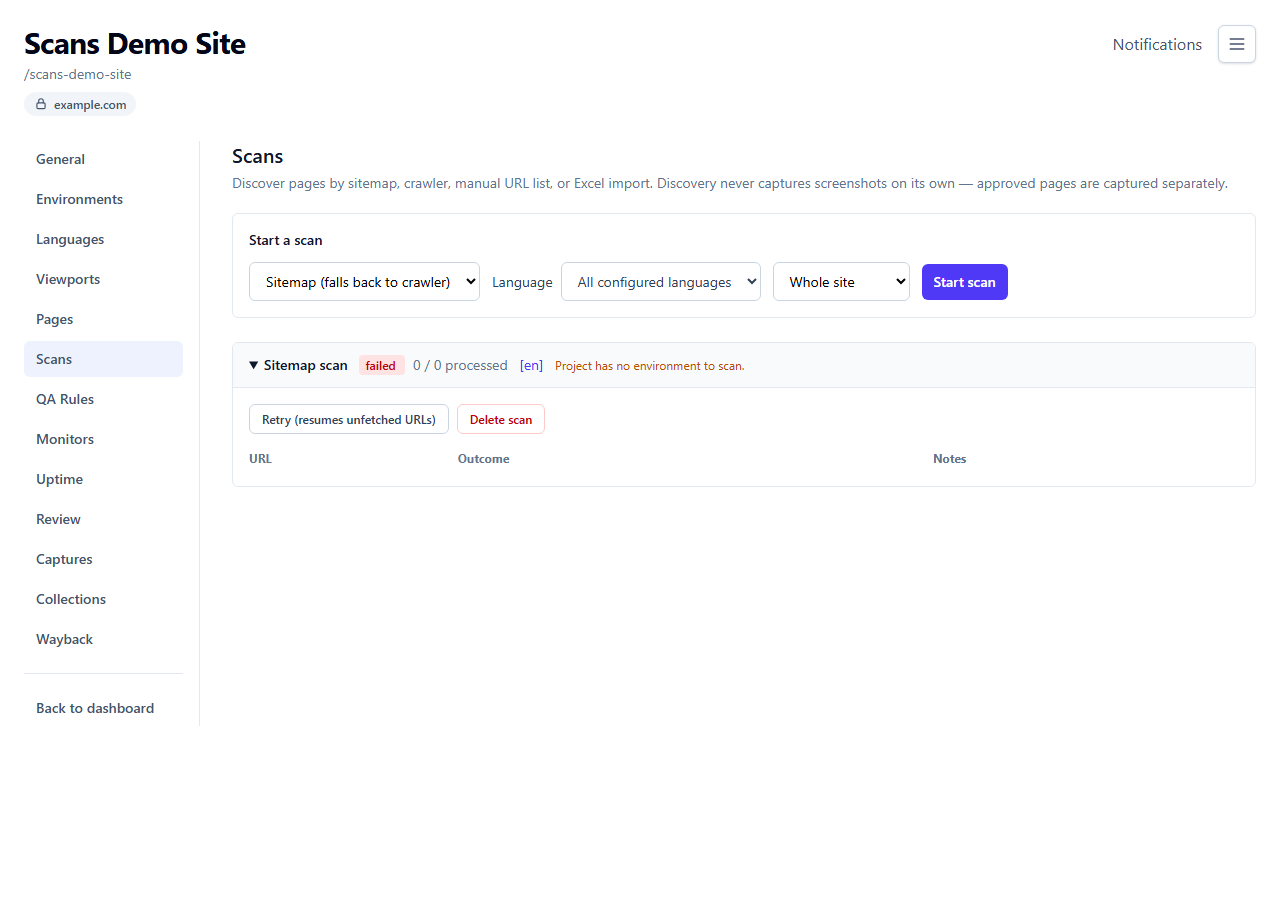
A Scan finds pages on your site automatically, instead of you adding each one by hand on the Pages tab. Run one from the project's Scans tab.
Starting a scan
| Field | What it means |
|---|---|
| Source | How to find pages — see the four methods below. |
| Language | Which language to discover pages for. Leave blank to use every language configured for the project. |
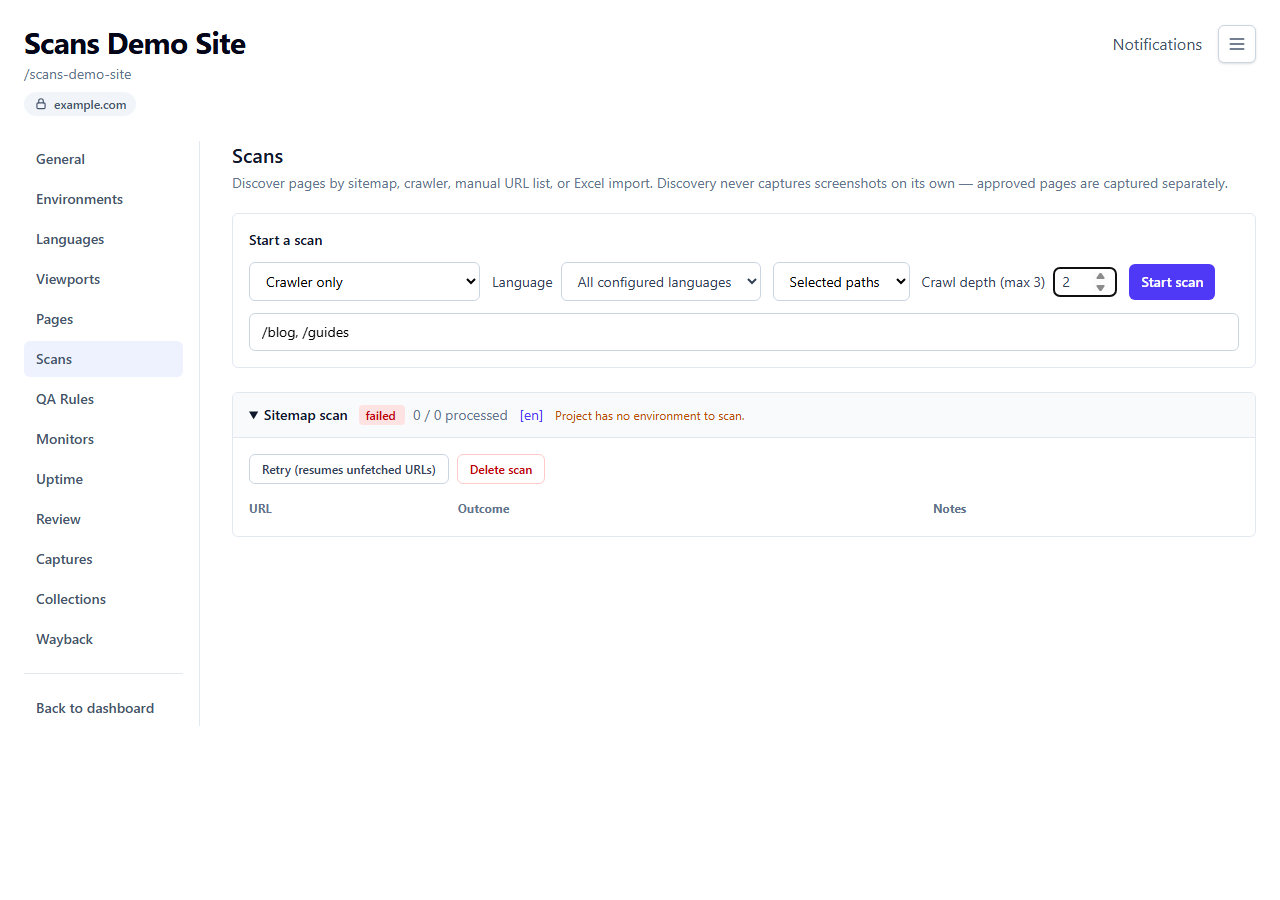
| Scope | Whole site or Selected paths (sitemap/crawler only) — restrict discovery to URLs starting with one or more path prefixes you list, e.g. /blog, /guides. |
| Crawl depth | Crawler only — how many link-hops deep to follow from the starting page. Capped by your plan. |
You need at least one language and at least one environment configured before you can run a scan (Sitemap/Crawler/Manual scans target your Production environment, or your first environment if none is marked Production — see Environments).
Path prefixes are language-agnostic — enter the route itself (e.g. /qa-playground), not a
language-prefixed version. The scan automatically builds each configured language's own version
of that path (using your project's language URL format) and
covers all of them, so you don't need to type /el/qa-playground by hand to reach the Greek page.
This works for folder-style (/el/...) and query-parameter-style (?lang=el) language formats.
It does not extend to a subdomain-based format (el.yoursite.com) with the Crawler source,
since crawling stays on the single site you configured — a Sitemap scan still picks up
subdomain-language pages as long as your sitemap lists them.
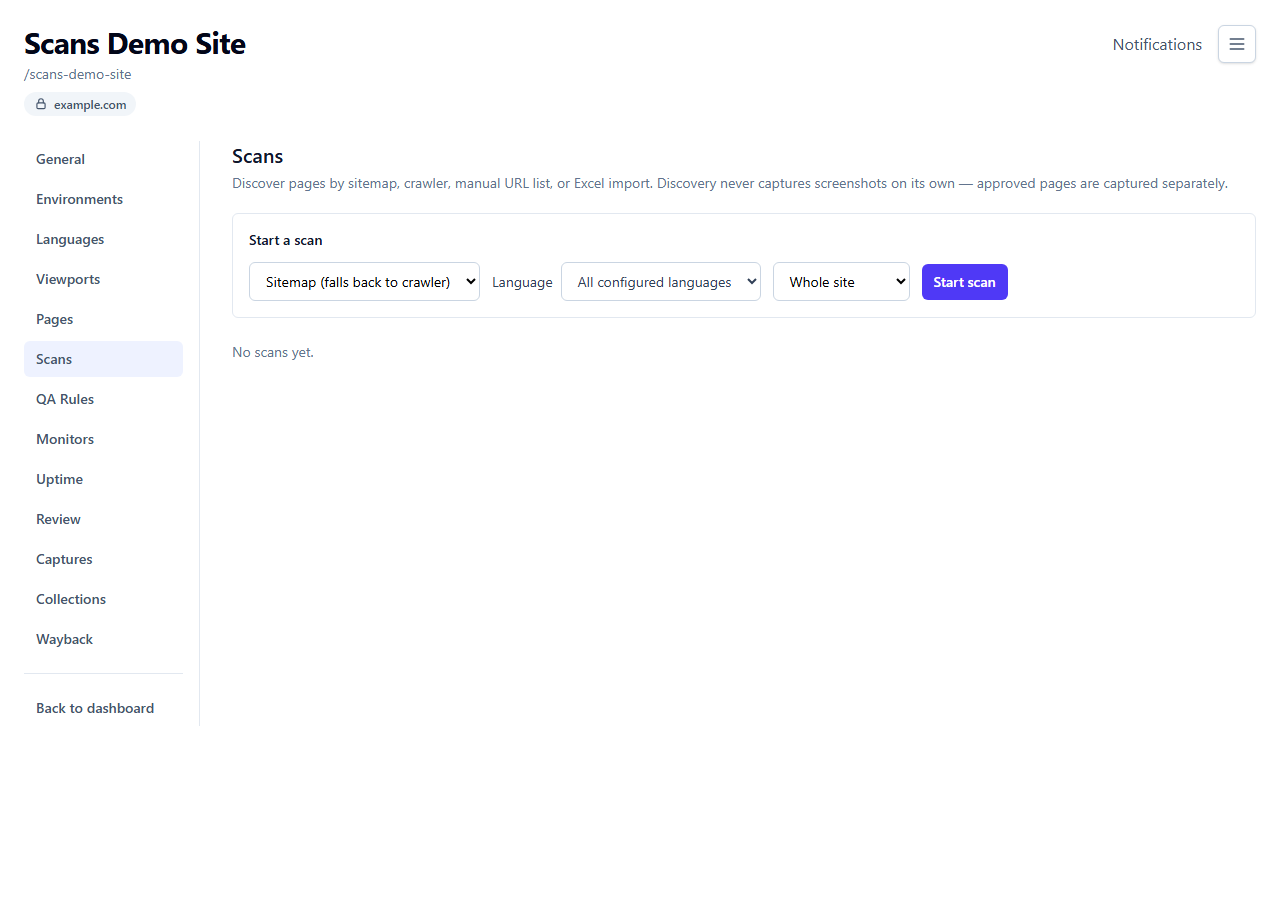
Discovery methods
- Sitemap — fetches
/sitemap.xml(and any sitemaps it references, including sitemap index files) and adds every URL it lists. Fastest and most accurate if your site maintains one. - Crawler — starts at your site and follows links, staying on the same domain, up to the crawl depth you set. Slower, but works without a sitemap.
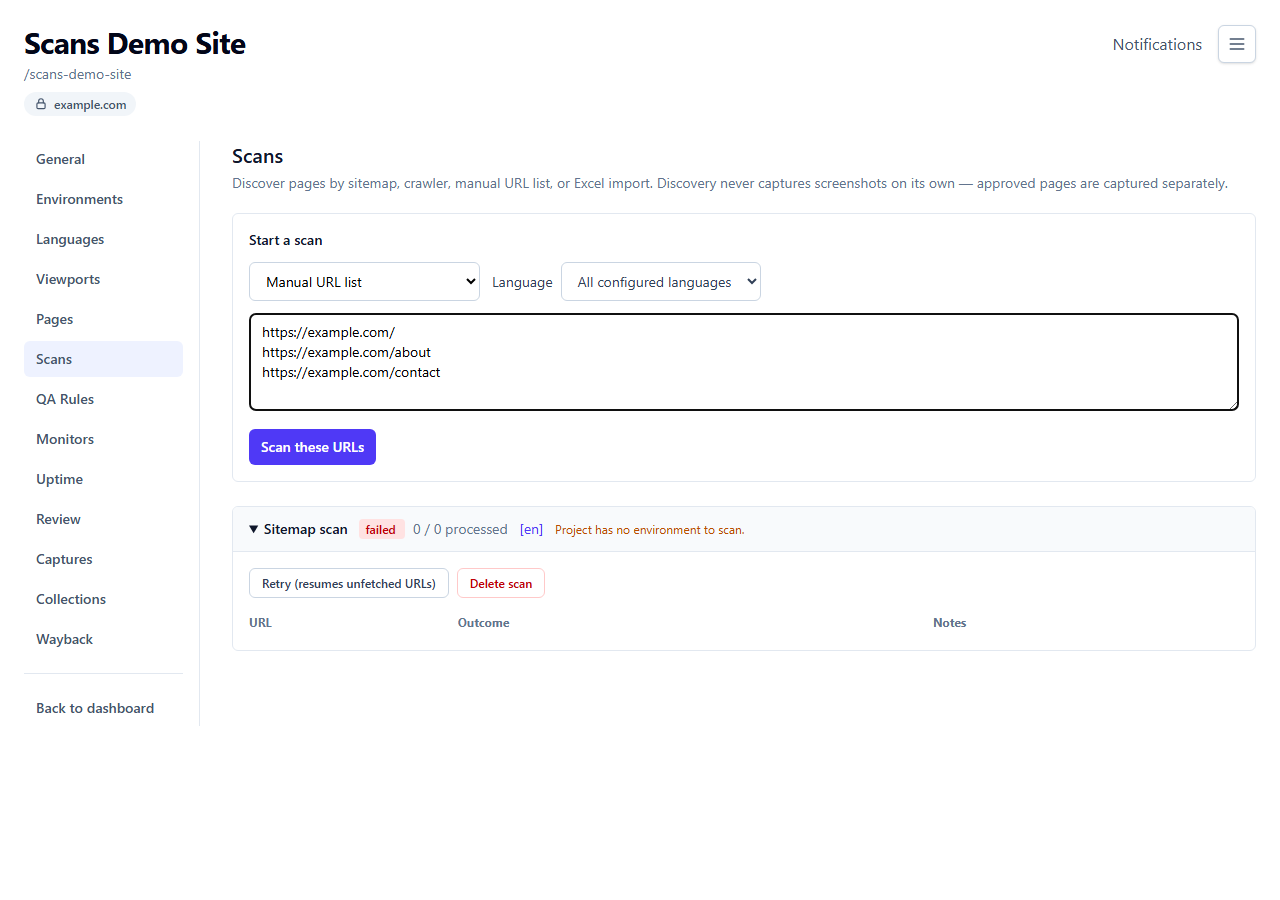
- Manual URL list — paste in URLs yourself, one per line, up to 2000 at once. Useful for a known set of pages you want tracked without a full scan.
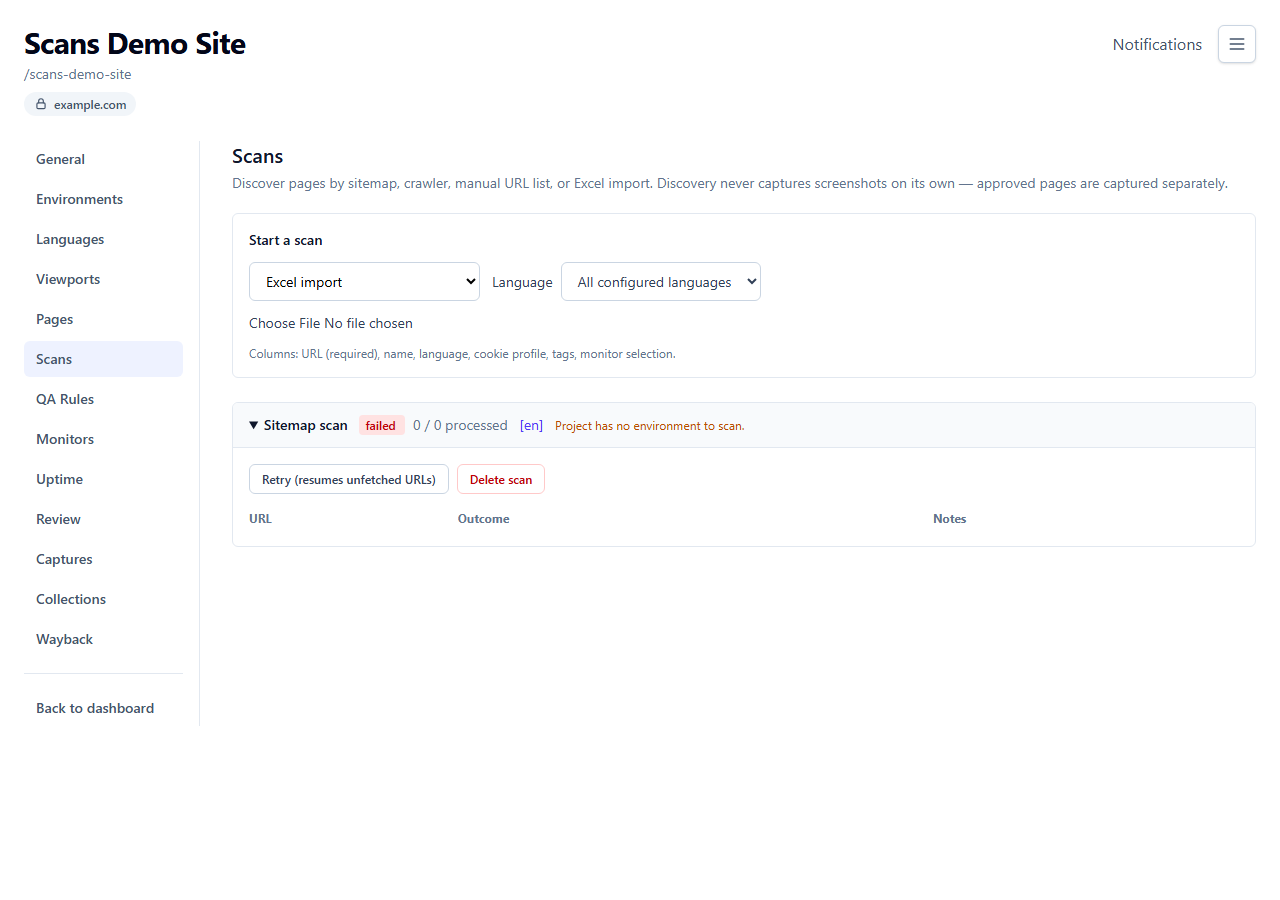
- Excel import — upload a
.xlsxspreadsheet (up to 5MB) with aURLcolumn (required) and optionalname,language,variable,tags, andmonitor selectioncolumns.
Crawler adds a scope and crawl-depth control (capped by your plan):
Manual URL list and Excel import replace the scope controls with their own input:
Every method skips pages outside your site's domain, and strips common tracking parameters
(utm_*, gclid, fbclid, and similar) so the same page reached with different tracking tags
isn't counted twice.
Watching a scan run
Scans run in the background — the list updates automatically every few seconds while a scan is in progress. Each scan shows:
| Status | Meaning |
|---|---|
| Queued | Waiting to start. |
| Running | In progress. |
| Completed | Finished, everything processed. |
| Partial | Stopped early — hit a plan limit or a time budget. Check the reason shown, then retry once resolved. |
| Failed | Could not complete (e.g. a malformed Excel file, or the sitemap URL couldn't be reached). |
| Paused | You paused it. Pages found so far are kept; Resume continues where it left off. |
| Stopped | You stopped it for good. Pages found so far are kept; Retry can still continue it. |
Expand a scan to see every URL it looked at and what happened to each one:
| Outcome | Meaning |
|---|---|
| New | Not seen before — a candidate to add to your Pages inventory. |
| Existing | Already tracked. |
| Missing | Was tracked before, not found this time. |
| Redirected | The URL redirects elsewhere. |
| Non-indexable | Blocked by robots.txt — excluded from search engines. |
| Failed | Couldn't be reached during the scan. |
| Imported / Updated existing | Excel import only — a brand-new page, or one that matched an existing page. |
| Skipped | Excel import only — the row had a problem (missing URL, an unsafe cell value, or an unresolved reference) and was left out; the notes column explains why. |
Approving new pages
Newly discovered ("New") pages aren't added to your regular Pages inventory automatically — you choose which ones to keep. Tick the pages you want, then Approve selected. This only marks them as tracked; it does not take a screenshot of them. Run a capture separately once you're ready.
Pages a scan finds blocked by robots.txt ("Non-indexable") work the same way: they aren't added
automatically either, since robots.txt is a deliberate "keep this out" signal. Their row's Notes
column reads "Blocked by robots.txt" so you know why. If you still want to track and capture one —
for example a QA/staging path you've intentionally hidden from search engines but still want
VisualRunner to watch — tick it and Approve selected just like a New page. It's added tracked
as Non-indexable, so it stays out of anything that only surfaces search-indexable pages.
Use Select all / Deselect all above the results table to approve a scan's pages in bulk. After approving, a confirmation ("N pages added to the Pages tab") appears above the results table.
Pause, resume, stop or delete a scan
Each scan's header row has buttons for this, without expanding it:
- Pause: the scan stops within a few seconds and keeps every page found so far. Resume continues from there, skipping pages it already processed.
- Stop: ends the scan for good, keeping the pages found so far.
- Delete: removes the scan and its results at any time; a running scan is stopped first. Pages already added to your Pages inventory stay.
If a scan stops partway (Partial or Failed)
Use Retry on the scan. Retrying re-runs discovery but skips URLs it already finished processing, so it picks up roughly where it left off rather than starting over. If it stopped because of a plan limit (too many pages already tracked, or too many found in one run), retrying won't help until you free up room or upgrade — the reason shown tells you which limit was hit.